


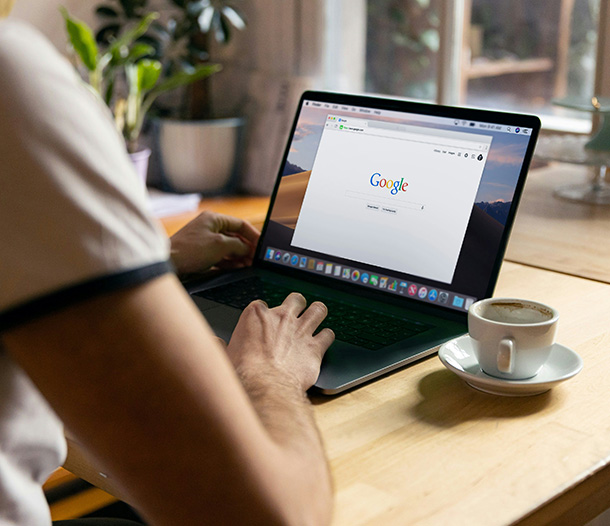


Google Chrome is the browser most of us open first thing in the morning and close last thing at night. It’s fast and familiar, but there’s a hidden side most people never see: a page full of experimental settings that can change how Chrome works.
They’re called Chrome flags. Some can speed up downloads, smooth out scrolling, or tame a noisy tab. Here’s what Chrome flags are, five useful ones to try in 2026, and what to know before you start flipping switches on a work computer.
What are Google Chrome Flags?
Google is constantly building and testing new features for Chrome. Before a feature rolls out to everyone, it often shows up as a flag: an experimental setting you can turn on yourself to try it early.
To open the flags page:
- Open Chrome, or a new tab if Chrome is already open.
- Type chrome://flags in the address bar and press Enter.
- Use the search box at the top to find a flag by name.
- Change the dropdown next to the flag from Default to Enabled.
- Select Relaunch at the bottom of the window to restart Chrome with the change.
You’ll see a warning at the top of the page, and it’s worth taking seriously. Flags are experiments. They can change or disappear between Chrome updates, and occasionally they cause bugs. If something goes wrong, return to the flags page and select Reset all to put everything back to normal.
Where Did the Original Flags Go?
This post originally recommended flags like password generation and desktop guest mode. Those experiments worked out so well that they’re now standard Chrome features, no flags needed. Chrome’s built-in password manager can suggest strong passwords when you create a new account, and guest mode is available right from your profile menu.
That’s the typical life of a good flag: tested, refined, and eventually built in. Which is why the list below looks completely different.
5 Useful Google Chrome Flags for 2026
These flags are available in current versions of Chrome on desktop. Flag names and availability can change with updates, so if you search for one and it doesn’t appear, it has most likely been removed or turned into a default setting.
1. Parallel downloading
This is one of the most reliable flags in Chrome. Instead of downloading a file in one stream, Chrome splits it into several pieces and downloads them at the same time. On a good connection, large files like software installers or video exports can finish noticeably faster.
Find it: chrome://flags/#enable-parallel-downloading
2. Tab audio muting UI control
We’ve all had a tab start playing a video or ad out of nowhere. This flag turns the little speaker icon on a tab into a mute button, so you can silence a noisy tab with one click without hunting for the video player.
Find it: chrome://flags/#enable-tab-audio-muting
3. Auto Dark Mode for Web Contents
Chrome can already switch its own menus to dark mode, but most websites stay bright white. This flag forces a dark theme on web pages too, which some people find easier on the eyes in the evening or in a dim office. Some sites may look a little off, so try it and see if you like it.
Find it: chrome://flags/#enable-force-dark
4. GPU rasterization
This flag hands more of the work of drawing web pages to your computer’s graphics processor instead of its main processor. On laptops where the processor is the bottleneck, pages can scroll and render more smoothly. Many newer computers already use it by default.
Find it: chrome://flags/#enable-gpu-rasterization
5. Smooth Scrolling
On Windows and Linux, scrolling through a long page with a mouse wheel can feel jumpy. This flag smooths out the motion so the page glides instead of jumping in steps. On many current Chrome builds, smooth scrolling is already on by default, so if you can’t find the flag, you probably already have it.
Find it: chrome://flags/#smooth-scrolling
Built-In Chrome Features Worth Knowing
You don’t need flags for some of Chrome’s most useful tools. These are already in your settings:
- Memory Saver: in Settings > Performance, this frees up memory from tabs you haven’t used in a while, which helps if you live with 30 tabs open.
- Tab groups: right-click a tab and choose Add tab to new group to color-code and collapse related tabs by project or client.
- Safety Check: in Settings > Privacy and security, this checks for compromised passwords, risky extensions, and pending updates.
- Enhanced protection: also under Privacy and security, this gives you Chrome’s strongest warnings about dangerous sites and downloads.
Using Chrome Flags Safely at Work
Flags are fun to experiment with on your own computer. On a work machine, a little caution goes a long way:
- Change one flag at a time. If something breaks, you’ll know exactly which change caused it.
- Stick to flags with a clear benefit. Most flags are small interface experiments with little real-world value. Don’t enable a flag just because a list told you to.
- Never disable security features. Some flags turn off protections that keep you safe online. If a flag’s description mentions security, certificates, or sandboxing, leave it alone.
- Know how to undo it. The Reset all button on the flags page returns every flag to its default setting.
- Check with IT first. On company-managed computers, your IT team may restrict access to the flags page entirely, and for good reason. Chrome Enterprise lets administrators control browser settings with policies so every employee gets a consistent, secure setup.
If a flag makes your browser unstable, or Chrome starts behaving strangely after an update, reset your flags before you troubleshoot anything else.
LG Networks Can Help Your Team Browse Faster and Safer
A few well-chosen browser tweaks can make a team’s day smoother. But across a whole business, the bigger wins come from keeping browsers updated, extensions in check, and security settings consistent on every computer.
LG Networks provides IT support in Dallas and across DFW, including cybersecurity services, managed updates, 24/7 monitoring, and a 24/7 helpdesk your team can call when Chrome, or anything else, starts acting up. We help businesses set up their tools so employees can work faster without opening the door to risk.
How many hours a week does your team spend waiting on slow downloads and frozen tabs?
Take the first step. We’ve got you covered.
Want help setting up secure, consistent browsers across your team? Contact Us Today.
