





Ever notice how one computer in the office takes forever to start up while another is ready before you’ve set down your coffee? There’s a good chance the difference isn’t the processor or the age of the machine. It’s the drive.
Every computer stores its data on either a hard disk drive (HDD) or a solid-state drive (SSD), and sometimes both. A decade ago, choosing between them was a real debate. Today the answer is a lot clearer, but HDDs haven’t disappeared, and knowing the difference still matters when you’re buying new computers, upgrading old ones, or deciding where your business data should live.
HDD (Hard Disk Drive)
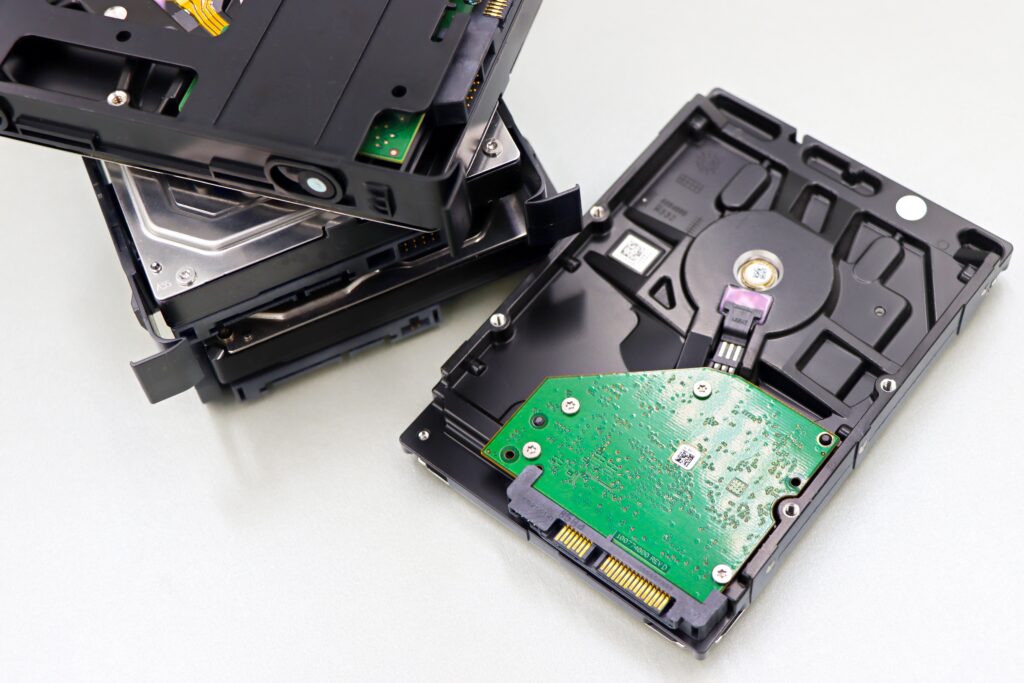
Hard disk drives have been around since the 1950s and are still built on the same basic idea. Data is stored on spinning magnetic platters, and a tiny arm moves across them to read and write information, a bit like the needle on a record player.
That design comes with clear strengths: HDDs offer huge amounts of storage for the money, and large-capacity drives are still far cheaper per gigabyte than SSDs. But all those moving parts also mean HDDs are slower, louder, more power-hungry, and more vulnerable to damage if a laptop gets dropped or bumped.
SSD (Solid-State Drive)
Solid-state drives have no moving parts at all. Data is stored on flash memory chips, the same basic technology inside the USB flash drives most offices have rattling around a desk drawer.
Because there’s nothing to spin up or move into position, SSDs read and write data dramatically faster than HDDs. Most modern SSDs connect using a technology called NVMe, which makes them faster still. They’re also silent, use less power (good news for laptop battery life), and hold up far better to bumps and drops.
Today, nearly every new business laptop and most desktops ship with an SSD as standard.
HDD vs. SSD at a Glance
| HDD | SSD | |
|---|---|---|
| Speed | Slower boot times and file access | Dramatically faster boot, app loading, and file transfers |
| Durability | Moving parts can fail if dropped or bumped | No moving parts, much more resistant to shock |
| Capacity | Very high capacities available affordably | High capacities available, but cost more |
| Cost per gigabyte | Lowest, especially for large drives | Higher, but far cheaper than it used to be |
| Power and heat | Uses more power, runs warmer | Uses less power, better laptop battery life |
| Noise | Audible spinning and clicking | Silent |
| Best for | Bulk storage, archives, backups | Everyday computers, operating systems, apps |
What’s Changed Since the SSD Debate Began
When SSDs first went mainstream, two concerns kept businesses on the fence: price and lifespan. Both have largely faded.
Price. Early SSDs cost well over a dollar per gigabyte, which made them a luxury for most small businesses. Prices have fallen dramatically since then. An SSD with plenty of room for everyday business use now costs a fraction of what a much smaller drive did a decade ago, though HDDs still win on cost when you need many terabytes.
Lifespan. SSDs can only write data a limited number of times, which led to fears that they’d wear out in a few years. In practice, modern SSDs are rated to handle far more writing than a typical office computer will ever do, and many come with five-year warranties. Real-world data backs this up: Backblaze, which tracks hundreds of thousands of drives in its data centers, found that the SSDs it uses as boot drives failed at a lower rate than comparable hard drives.
Hard drives are still reliable workhorses, too. In its Q2 2026 Drive Stats report, Backblaze recorded an annualized failure rate of about 1.7% across more than 350,000 hard drives. That’s low, but it’s not zero, which is exactly why backups matter no matter which drive you use.
SSD or HDD: Which Should Your Business Use?
The old advice was to use both: an SSD for the operating system and programs, plus an HDD for files. That still makes sense in a few places, but for most businesses today the answer is simpler.
- Laptops and desktops: SSD, every time. Faster startups, quicker apps, and fewer drive failures from bumps and drops add up to real time saved across a whole team. If you have older computers still running on hard drives, swapping in an SSD can make them feel new again, though it’s worth checking whether the machine is due for replacement anyway.
- Servers and network storage: often both. Many businesses use SSDs for databases and applications that need speed, and HDDs for large file shares and archives where capacity matters more.
- Backups and archives: HDDs still shine. When you need lots of space for data you don’t access every day, hard drives remain the most cost-effective option. Cloud backup is another strong choice and protects you if something happens to the office itself.
Not sure what’s in your computer? On Windows 11, open Task Manager, select Performance, and click your disk. It’ll say SSD or HDD right there.
Don’t Forget About Old Drives
When it’s time to retire a computer, the drive inside can still hold years of business data: client files, emails, saved passwords. Simply deleting files or reformatting doesn’t make that data unrecoverable, and SSDs and HDDs require different methods to erase properly.
NIST, the federal agency behind many security standards, publishes guidelines for media sanitization that explain how to wipe or destroy storage safely. If you’re retiring several machines, it’s worth having an IT provider handle it and document the process, especially if your business has compliance requirements.
LG Networks Can Help You Choose the Right Hardware
HDD or SSD is one decision. Behind it are bigger ones: which computers are due for replacement, where your business data should live, and how it’s backed up if a drive fails.
LG Networks provides managed IT services in Dallas, TX, and across DFW, including hardware planning and procurement, cloud backups and disaster recovery, 24/7 monitoring that can flag failing drives before they take your data with them, and a 24/7 helpdesk your team can count on. We’ll help you spend on the upgrades that actually make a difference and retire old equipment the right way.
How much time does your team lose every week waiting on slow computers?
Take the first step. We’ve got you covered.
Ready to find out which machines in your office need an upgrade? Contact Us Today.
